Settings
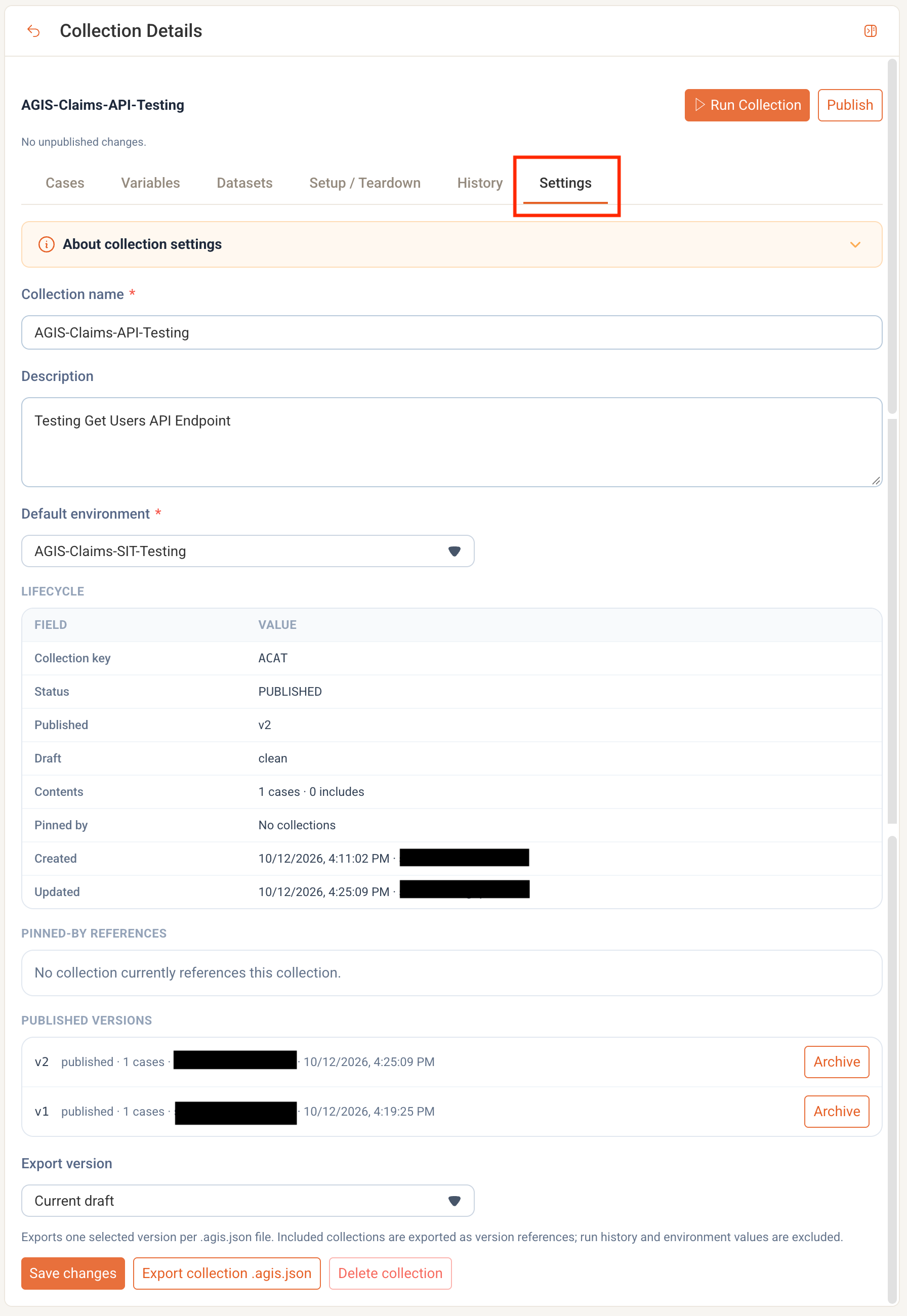
The Settings tab in Collection Details lets you view and edit the details of a collection, review its lifecycle and published versions, and export or delete the collection.
To open it, select the collection you want from the API Test listing, then select the Settings tab.
About Collection Settings
Select the About collection settings panel to expand it and read more about the collection settings.
Edit Collection Details
The following fields let you edit the details of the collection:
- Collection name — the name of the collection (required)
- Description — a description of the collection
- Default environment — the default environment used by the collection (required). Select it from the dropdown
After you make changes, select Save changes to save them.

View the Lifecycle
The LIFECYCLE table shows the following information about the collection:
| Field | Description |
|---|---|
| Collection key | The key of the collection |
| Status | The status of the collection, such as PUBLISHED |
| Published | The published version of the collection, such as v2 |
| Draft | The state of the draft, such as clean |
| Contents | The number of cases and includes in the collection, such as 1 cases · 0 includes |
| Pinned by | The collections that pin this collection. It shows No collections if there are none |
| Created | The date and time the collection was created, and who created it |
| Updated | The date and time the collection was last updated, and who updated it |
Pinned-by References
The PINNED-BY REFERENCES section lists the collections that reference this collection. If there are none, it shows No collection currently references this collection.
Published Versions
The PUBLISHED VERSIONS section lists every published version of the collection. Each version shows:
- Version — the version number, such as
v2 - Status — the status of the version, such as
published - Cases — the number of cases in the version, such as
1 cases - Published by — who published the version
- Published at — the date and time the version was published
To archive a version, select Archive next to it.

An archived version cannot be used for Rerun failed from History.
Export a Collection
To export the collection:
- In Export version, select the version to export from the dropdown, such as
Current draft. - Select Export collection .agis.json.

Below the dropdown, the page explains what is exported: one selected version per .agis.json file. Included collections are exported as version references. Run history and environment values are excluded.
Delete a Collection
To delete the collection, select Delete collection.

